.png)
1. How to Export Shipping Charges Details
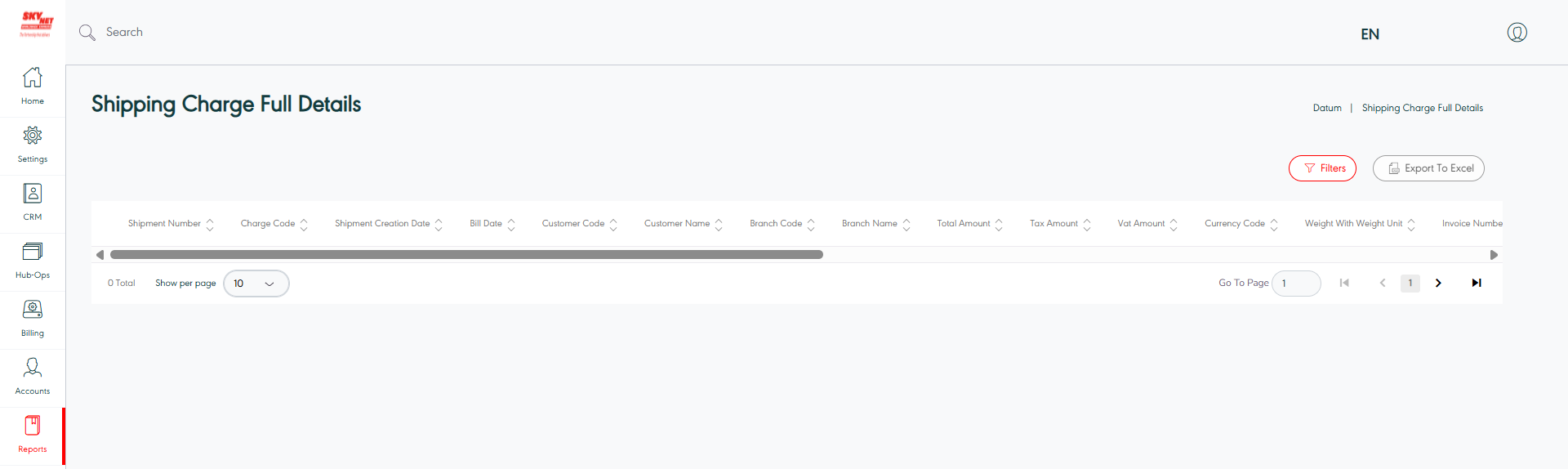
The user can export shipping charges details in the system by navigating to the “Shipping Charges Full Details“ via the Report Module from the left navigation panel as follows:
-
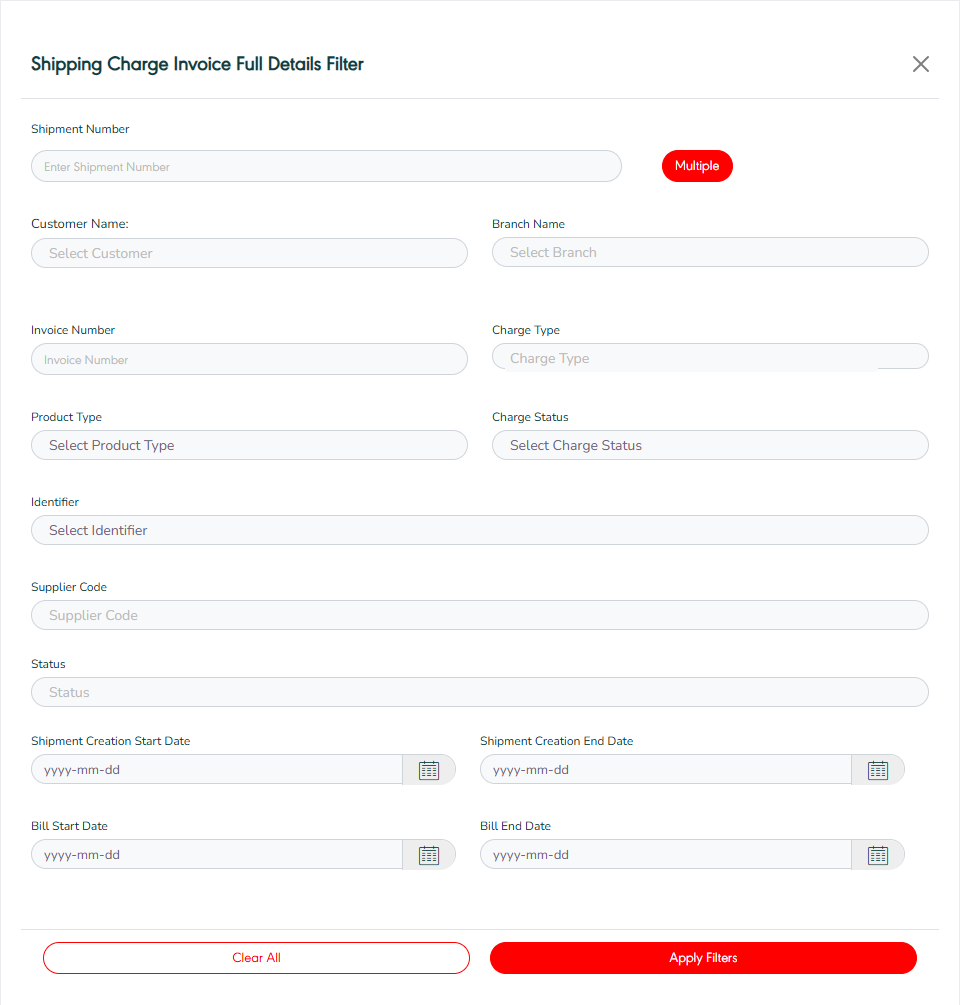
In the beginning, select the Filter button.
-
Fill in the fields.
-
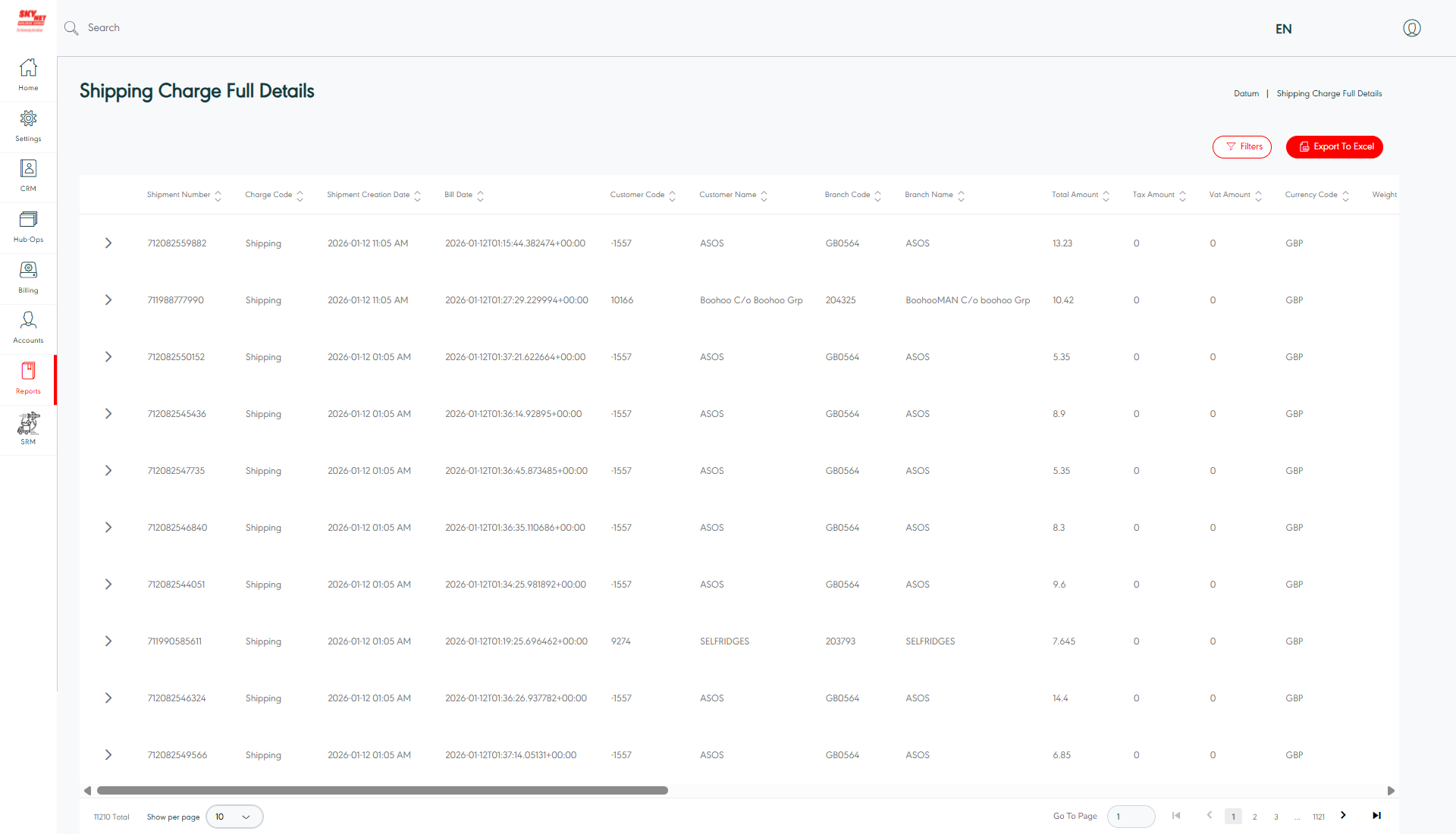
Select the Export to Excel button
-
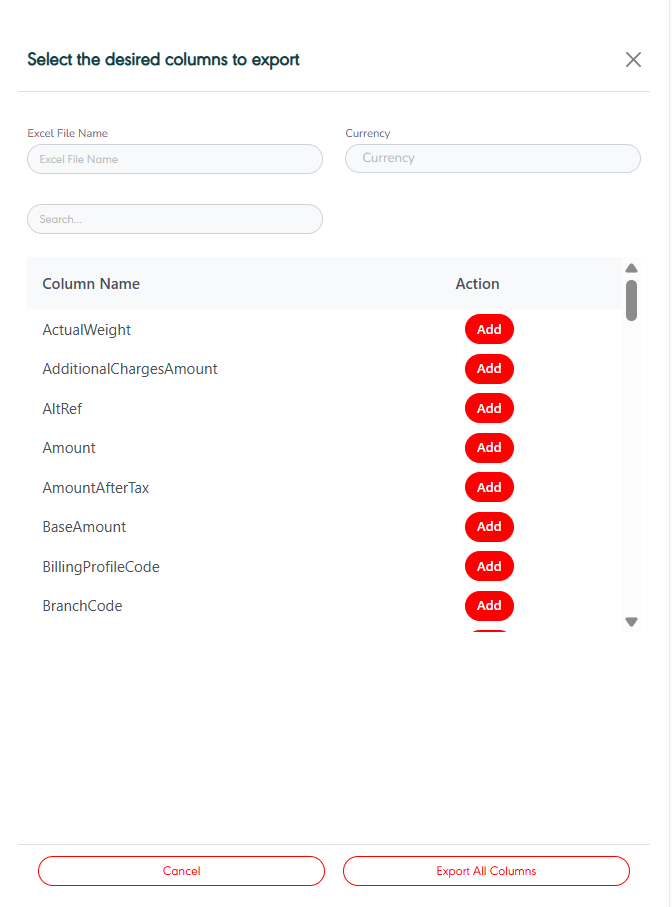
The user can export a specific column by clicking the Add button, or export all columns on the page by clicking the Export All Columns button.
2. How to Issue an Invoice
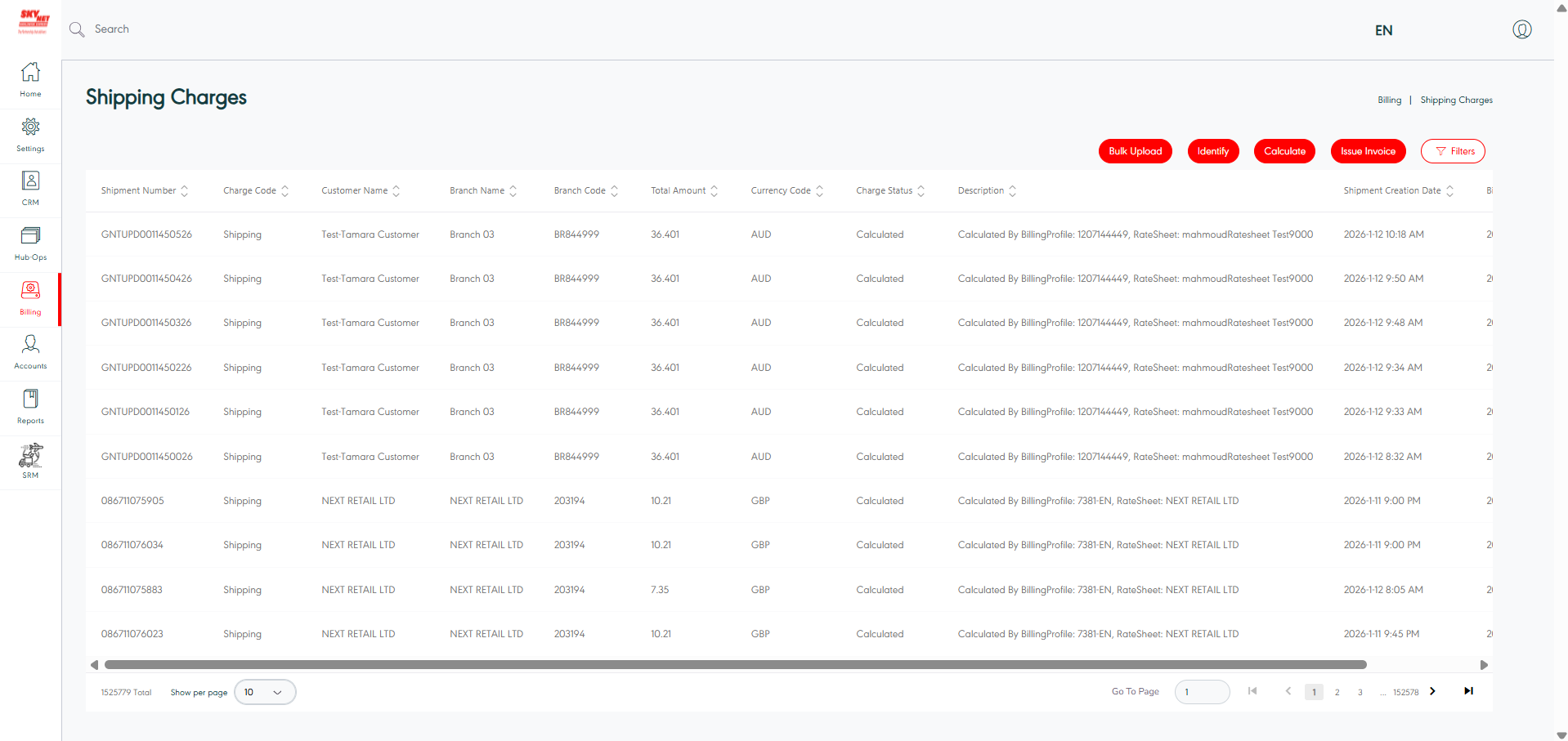
The user can an issue invoice by navigating to the “Shipping Charges“ via the Billing Module from the left navigation panel as follows:
-
In the beginning, select the Filter button.
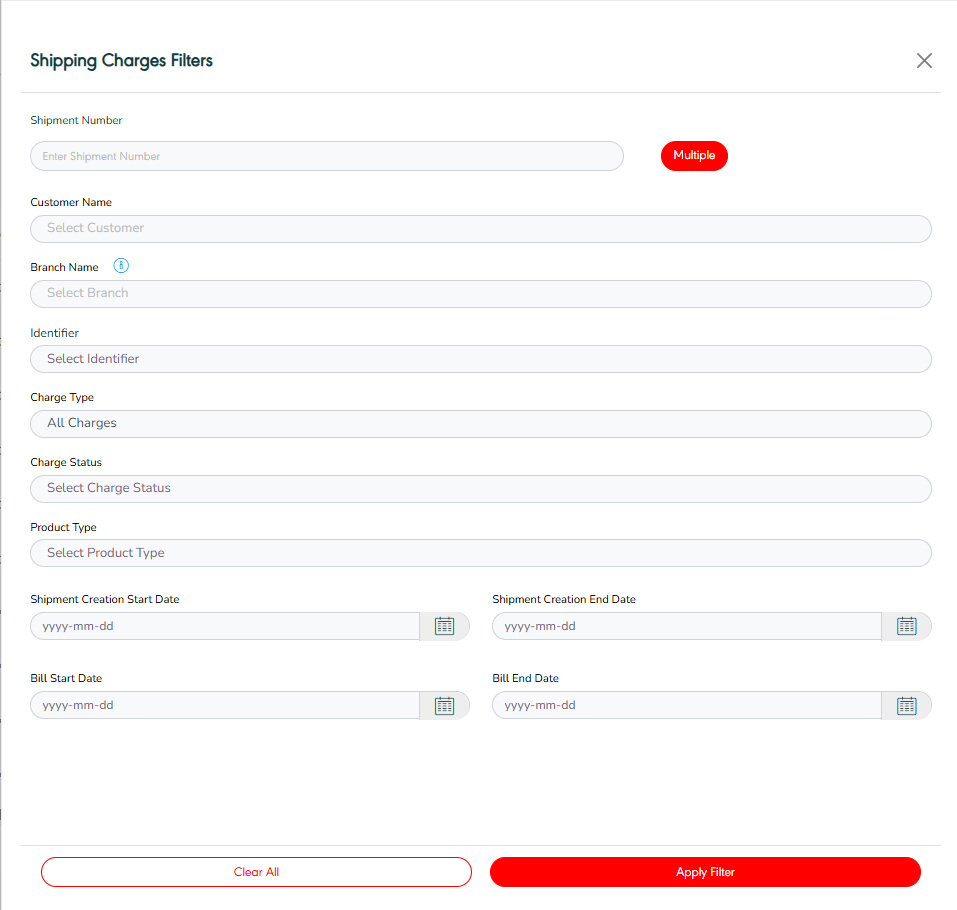
-
The user must fill in at least one of the following fields: Customer name or Identifier.
-
The user can select a single option or multiple options in the identifier field.
-
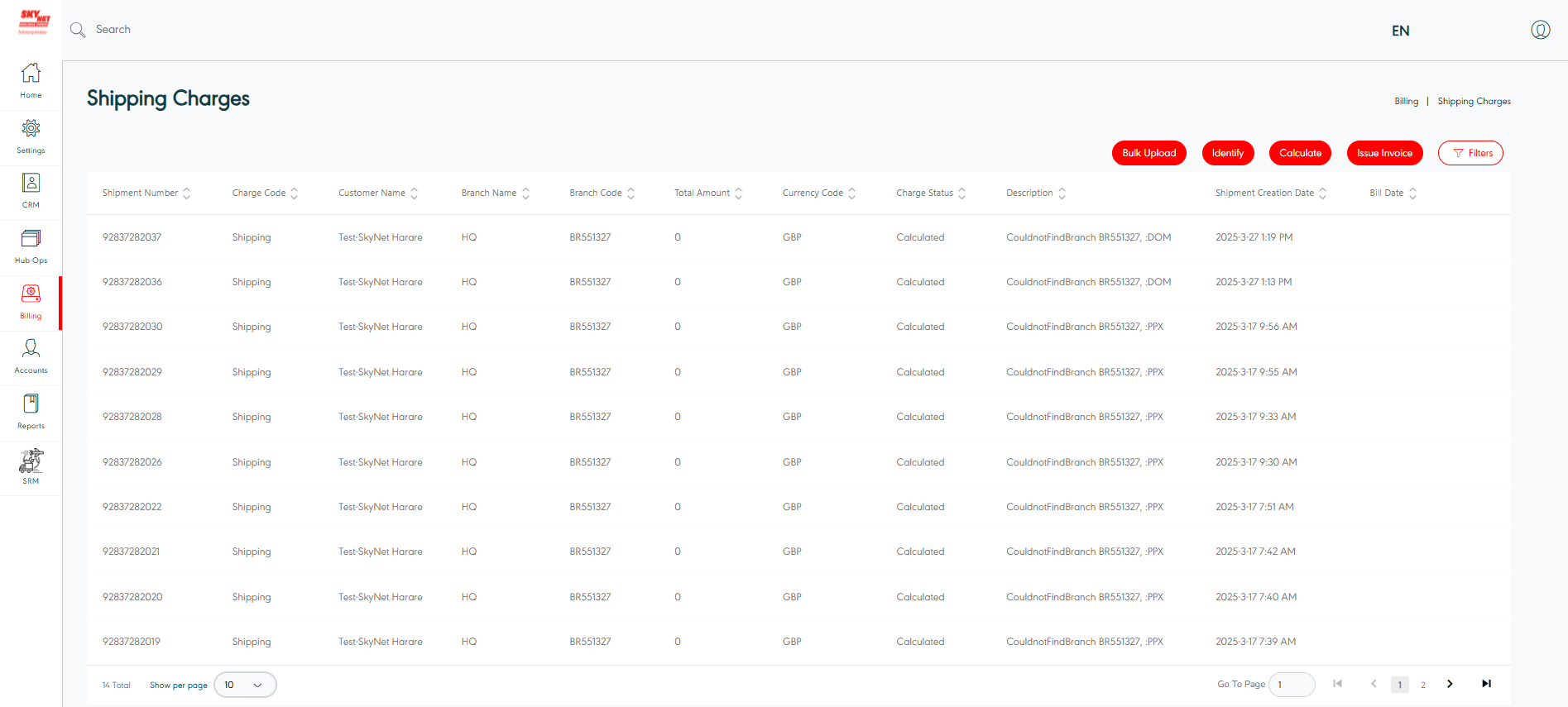
Click on the Issue Invoice button
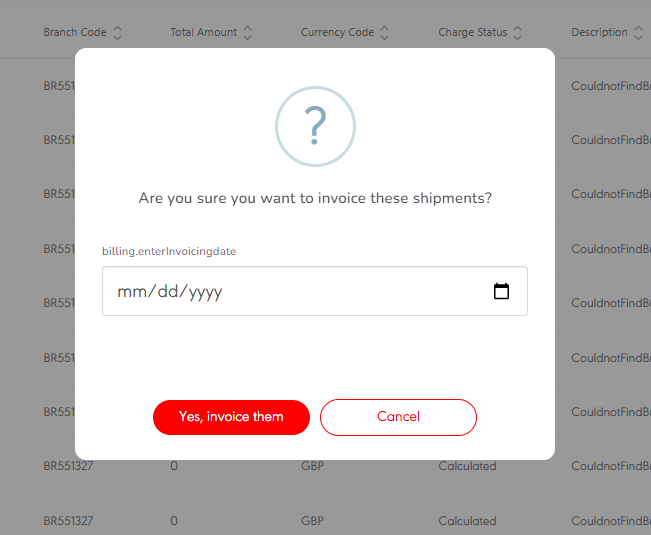
Select the invoice date.
3. How can Find the Invoices
The user can view a list of invoices in the system by navigating to the “Shipping Charges Invoices“ via the Billing Module from the left navigation panel as follows:
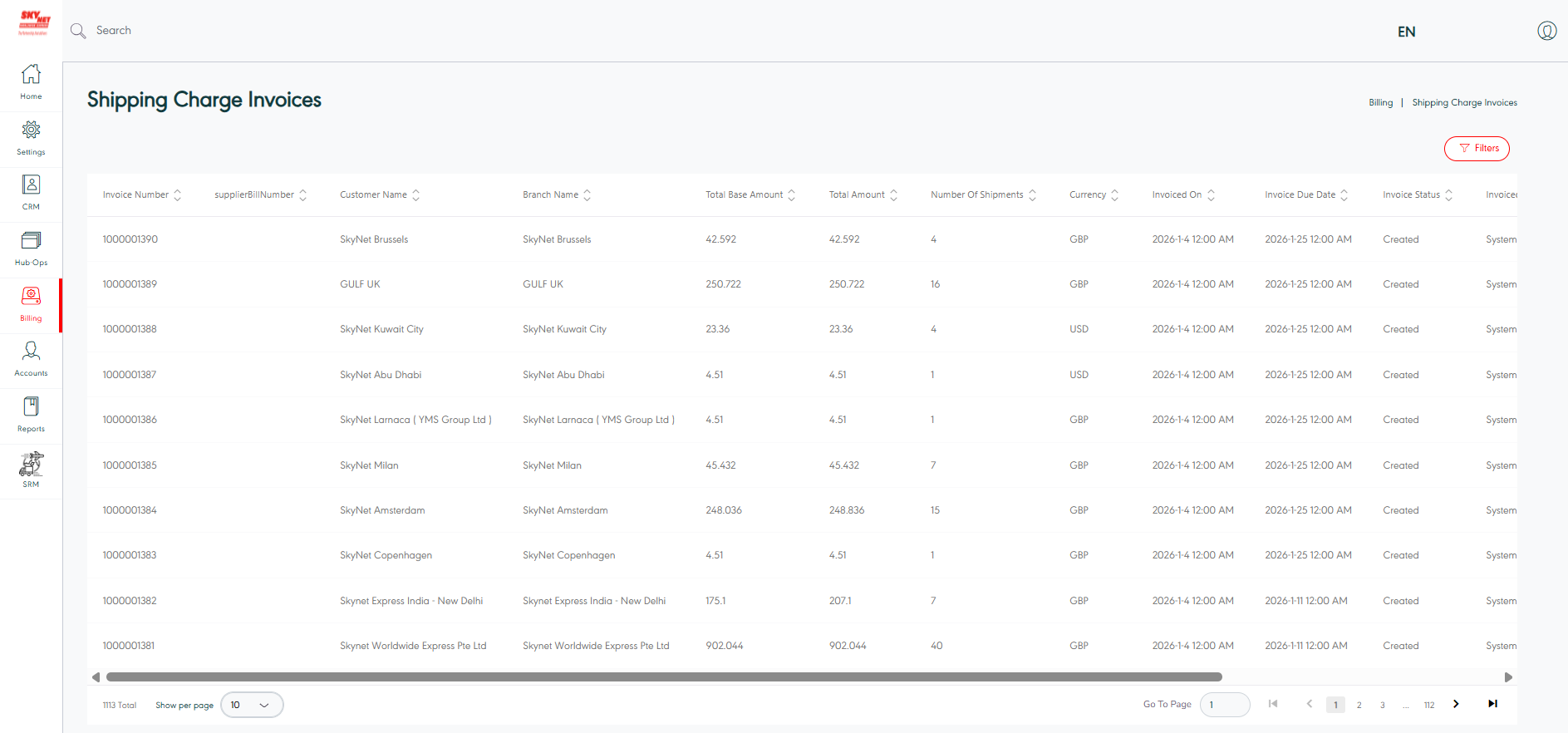
Actions: by clicking this button, the user can view the invoice details, print the invoice as a PDF or Excel file, or send the invoice by email in PDF and Excel formats at any time as follows:
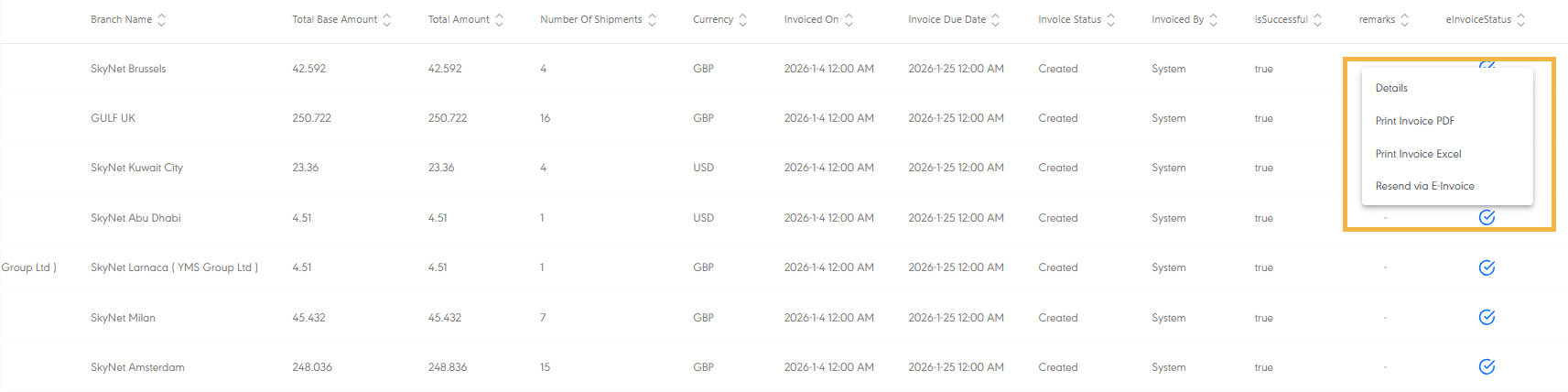
-
By clicking the blue button, the system verifies that the invoice has been sent.
4. How to Export the Invoice Report
The user can export the invoices report in the system by navigating to the “Shipping Charges Invoices“ via the Report Module from the left navigation panel as follows:
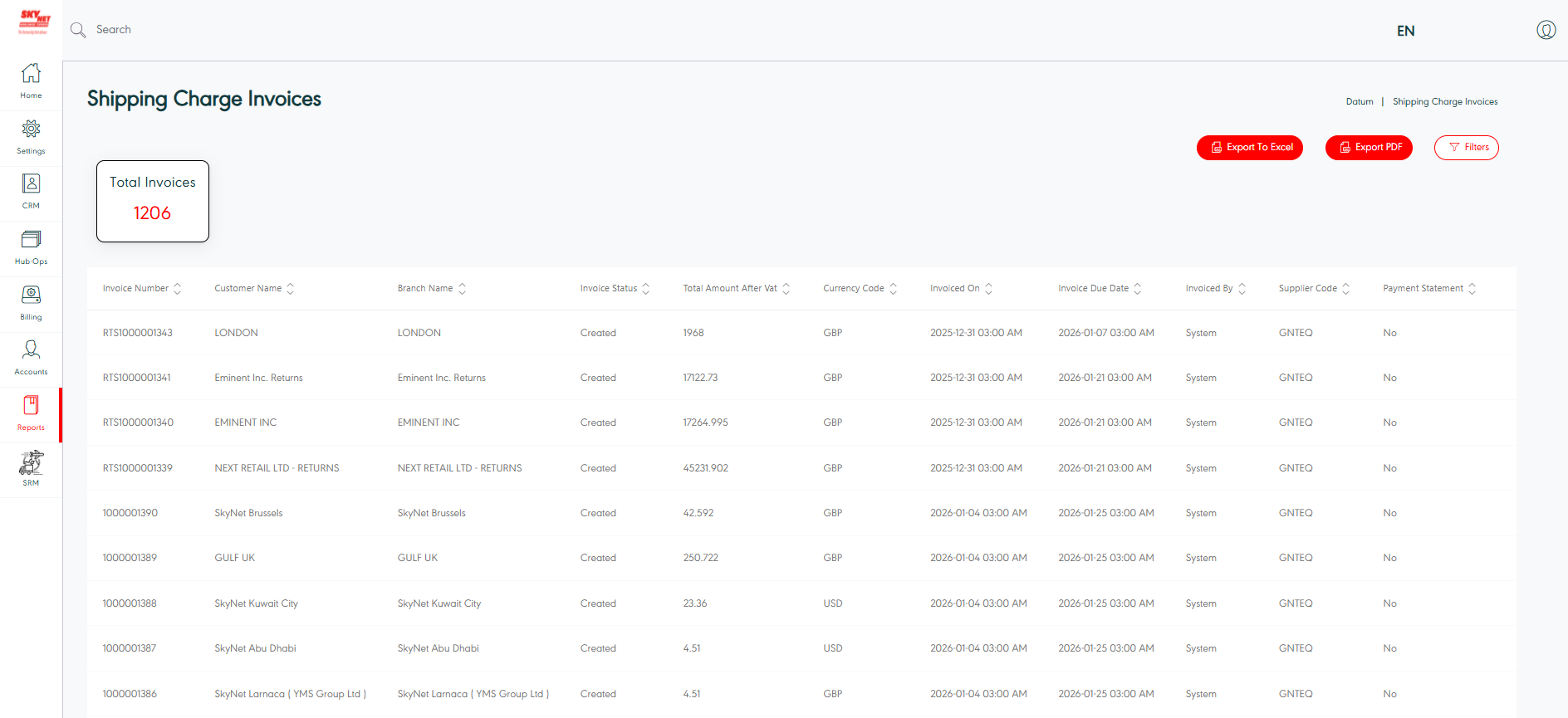
-
In the beginning, select the Filter button.
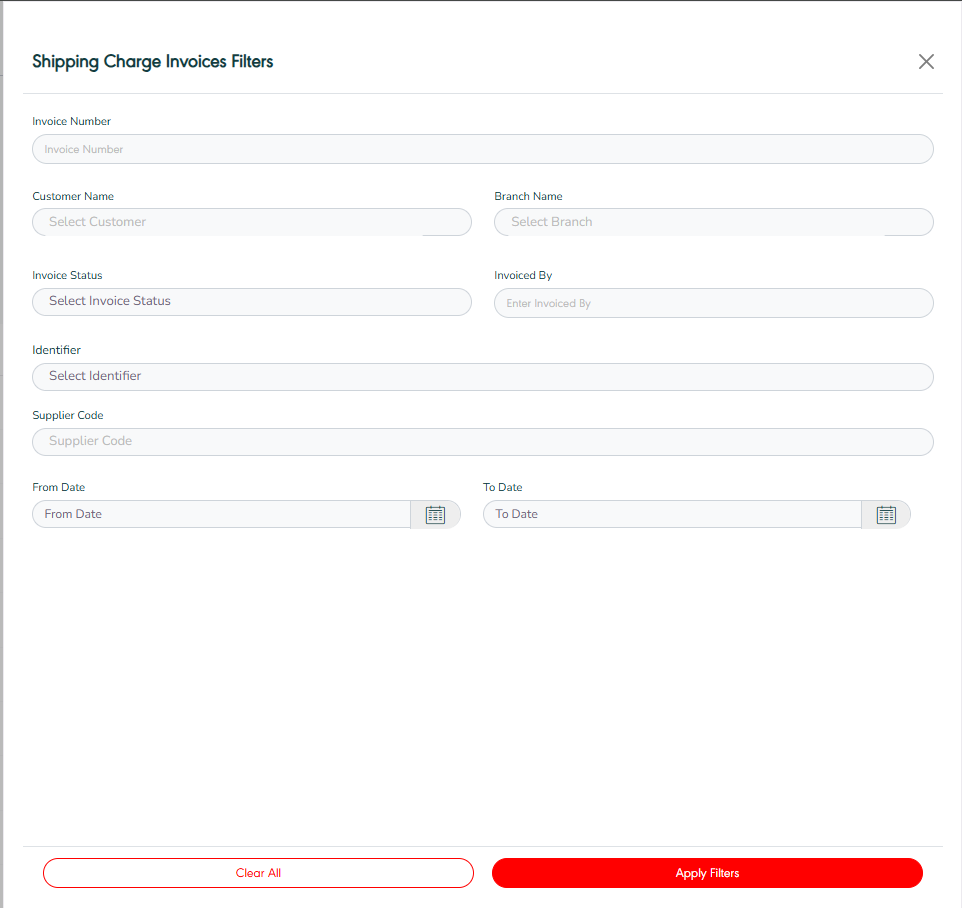
-
fill in the fields.
-
Export the invoice report in both Excel and PDF.
5. How to Export E- invoice Report
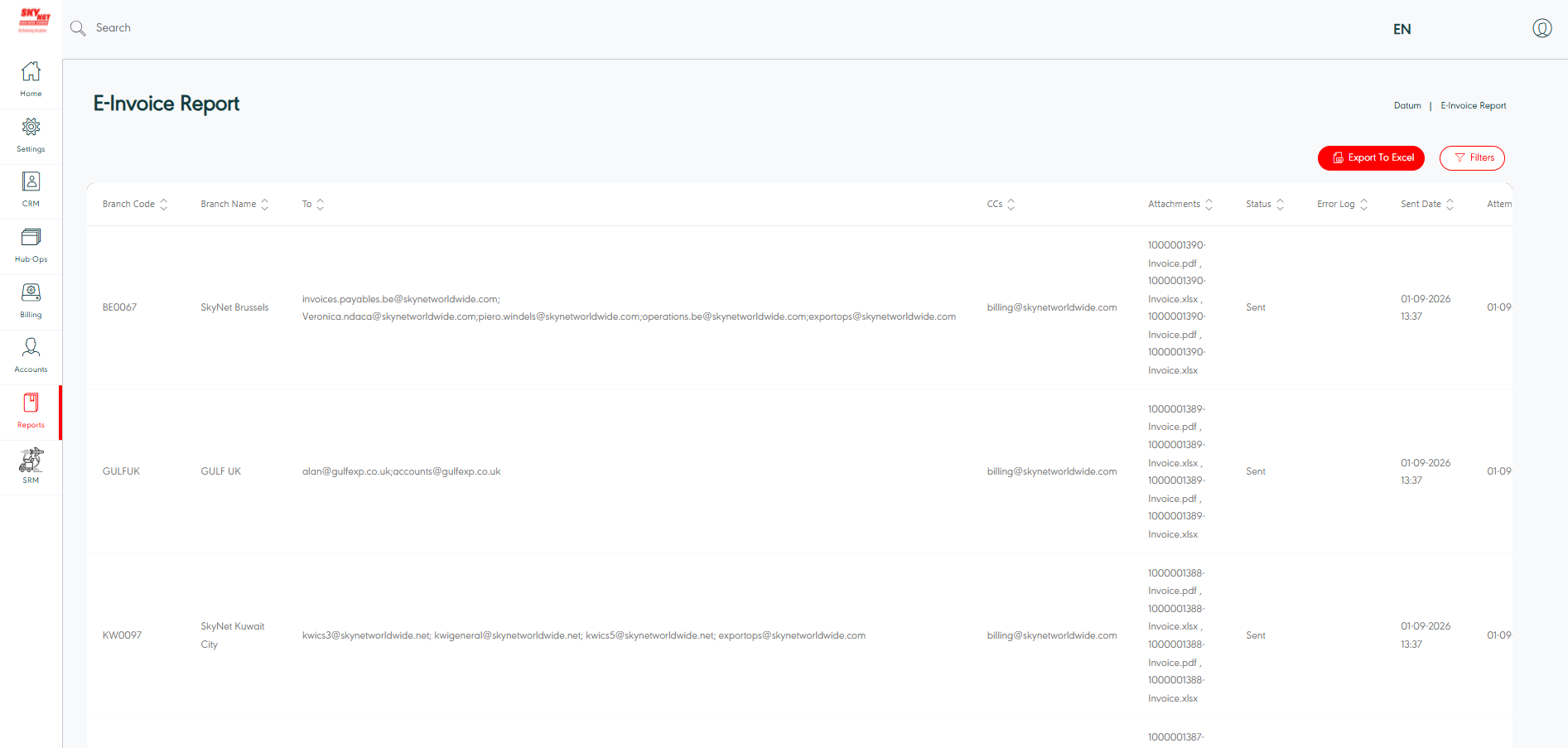
The user can export the E-invoices report in the system by navigating to the “E- Invoice Report“ via the Report Module from the left navigation panel as follows:
-
The report shows the branch code and name to which the email was sent, the CC recipients, the attachments, and the time of sending.